
Morse Code Audio Decoder
This is a free online Morse code audio decoder. Upload an audio file or plug in your microphone, and it converts Morse code beeps into readable text, letter by letter, in real time. No download needed. No account required. It runs entirely in your browser on any device. If you want to go the other direction and type text into Morse code instead, our Morse code translator handles that on the homepage.
What Is a Morse Code Audio Decoder?
A Morse code audio decoder is a tool that listens to audio containing Morse code signals and automatically converts those beeps into plain text. Instead of manually counting dots and dashes yourself, you let the tool do it. You either upload an audio file (.WAV or .MP3) or use your microphone live, and the decoder analyses the sound, identifies the Morse code pattern, and outputs the message as readable text. Think of it as a digital Morse operator sitting next to you, writing down every character the moment it finishes.
Morse code itself is a standardised signalling system defined by the International Morse Code standard (ITU-R M.1677), which specifies the exact timing ratios used for dots, dashes, and gaps. This decoder follows those same rules to interpret audio signals accurately.
How to Use the Morse Code Audio Decoder
Using this tool takes about thirty seconds. Here is the full process:
-
Option A (Audio File)Upload a .WAV or .MP3 audio file using the upload area in the Audio File card above.
-
Option B (Live Mic)Click the Listen button to start decoding live through your microphone in real time.
-
Check Your SettingsMake sure the Frequency (Hz) and WPM values in the Decoder Configuration panel match the settings used when the audio was originally created. This is the most important step. See the section below.
-
Press Play or ListenFor audio files, press the Play button. For microphone input, just leave it running. Decoding starts immediately.
-
Read the OutputWatch the decoded text appear in the message box, character by character, as each letter completes.
Match Your Recording Settings When Decoding
Every Morse code audio file is generated at a specific frequency (pitch) and a specific speed (WPM). When you decode it, the decoder needs to know those same values. If they do not match, the decoder is listening at the wrong setting and the output will be wrong characters or nothing at all.
Here is a real example: you go to a Morse code generator, set the pitch to 700 Hz and the speed to 20 WPM, and download the audio. You open this decoder and press Play but the decoder is set to 750 Hz. The result? Gibberish. Not because the tool is broken, but because it is looking for a tone at 750 Hz that does not exist in the file.
The fix is straightforward. Before pressing Play, match these settings:
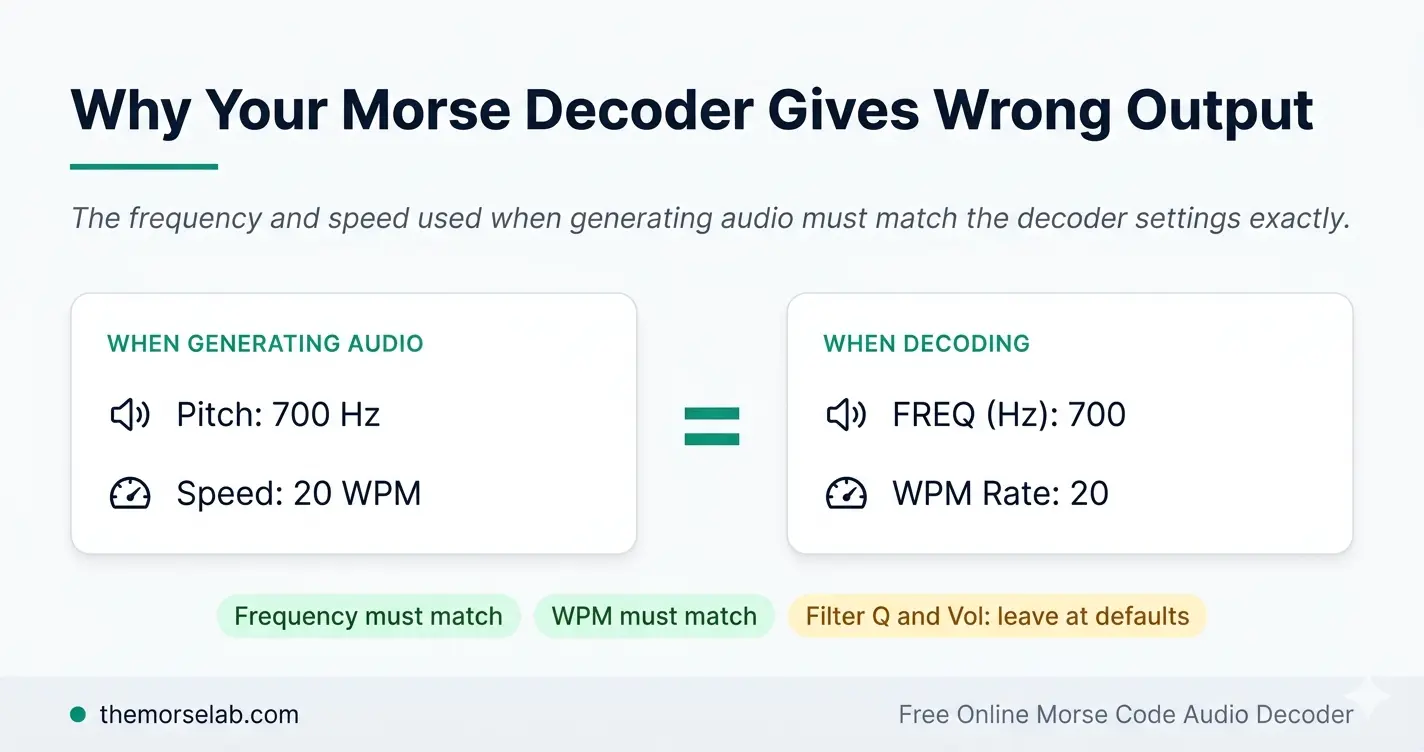
Quick tip: If you are not sure what settings were used when the audio was created, enable the Automatic Frequency Tracking checkbox. The tool will scan the file and detect the tone frequency on its own, removing the need to match it manually. WPM is also detected automatically in most cases.
What This Tool Can Decode
This decoder handles the complete standard international Morse code set. That includes letters, numbers, and common punctuation:
| Category | Characters |
|---|---|
| Letters | A B C D E F G H I J K L M N O P Q R S T U V W X Y Z |
| Numbers | 0 1 2 3 4 5 6 7 8 9 |
| Punctuation | . , ? / @ + – = |
Both uploaded audio files and live microphone input are fully supported. The decoder is built on the browser’s Web Audio API, which allows it to analyse sound directly in your browser without sending any data to a server. As long as the audio contains standard Morse code timing, the decoder will pick it up and output clean readable text.
Supported Audio Formats and Decoder Settings
Here is everything you need to know about what this tool accepts and how to configure it:
| Detail | Information |
|---|---|
| Accepted formats | WAV (recommended), MP3 |
| Best quality | Mono (single channel), clean recording with minimal background noise |
| Privacy | All audio is processed in your browser. No files are stored or sent to any server. |
| Browser support | Chrome, Firefox, Safari, Edge — any modern browser |
| Device support | Windows, Mac, Android, iOS |
What Is Farnsworth Timing?
Farnsworth timing is a learning method where individual Morse characters are sent at full speed (say 20 WPM) but the gaps between letters and words are stretched to give the listener more time to process each character before the next one arrives. It sounds slightly slower than standard Morse even though the characters themselves are transmitted at normal speed. The Farnsworth timing method is widely recommended by the American Radio Relay League for beginners learning to copy Morse by ear.
If the audio you are decoding was created using Farnsworth mode, enable the Farnsworth Timing Mode checkbox in the Decoder Configuration panel and set the Farnsworth WPM value to match the value used when the audio was generated.
Decoder Settings in Plain Language
- WPM Rate The speed of the Morse code. Set this to match the speed of your audio source (e.g. 20 WPM).
- Farnsworth WPM If Farnsworth timing was used when generating your audio, set this to the same value. Otherwise keep it equal to WPM Rate.
- Freq (Hz) The pitch of the Morse tone. This must match the pitch used when the audio was created (e.g. 700 Hz). This is the most important setting to get right.
- Filter Q How sharply the decoder focuses on your chosen frequency. Leave at 10 unless you are experiencing interference.
- Vol dB Min / Max The volume range the decoder listens to. The defaults (–60 / 0) work for virtually all audio files.
- Automatic Frequency Tracking When enabled, the tool detects the tone frequency from the audio file itself. Recommended when you are not sure what pitch was used.
Why Use This Free Online Morse Code Audio Decoder?
-
Completely free — no account, no sign-up, no payment, no time limit.
-
No download or installation — runs entirely in your browser. Open the page and start decoding.
-
Works on any device — Mac, Windows, Android, iOS. Any modern browser will do.
-
Two input methods — upload an audio file or decode live from your microphone.
-
Adaptive auto-detection — the tool identifies the tone frequency and speed from your audio automatically, so you do not have to guess.
-
Real-time output — characters appear one by one as the audio plays, just like a real Morse operator receiving a transmission.
-
Private by design — your audio never leaves your device. Everything is processed locally in your browser.
Who Can Use This Morse Code Decoder?
This tool was built to be useful for a wide range of people:
-
Amateur radio (ham) operators who need to decode real Morse transmissions quickly and accurately. The amateur radio community has used Morse code as a core operating skill for over a century.
-
Students and learners training their ear for Morse code and wanting to check their understanding against real audio.
-
Teachers who want to demonstrate Morse code decoding in class without needing specialist equipment.
-
Archivists and historians reviewing old audio recordings that contain Morse code transmissions.
-
Hobbyists and enthusiasts experimenting with signal-based projects or learning the code for the first time.
-
Puzzle and escape room designers who want to verify their Morse code audio clues before using them.
Tips for Getting the Best Decoding Results
A few simple things make a big difference to the quality of your output:
-
Use clean audioSingle-channel (mono) recordings with minimal background noise give the sharpest results. The WAV file format is uncompressed and gives slightly cleaner results than MP3 for Morse decoding. Stereo files work too, but mono is better.
-
Match your settingsAlways set the Frequency (Hz) and WPM to match however the audio was created. This single step prevents the most common decoding errors.
-
Use auto-detect when in doubtIf you are not sure what frequency was used, enable Automatic Frequency Tracking. The tool will scan the file and calibrate itself automatically.
-
For live microphone useFind a quiet room and keep a consistent sending speed. If you are keying Morse yourself, a steady rhythm will produce cleaner output.
Frequently Asked Questions
The decoder accepts .WAV and .MP3 audio files. WAV files tend to give slightly cleaner results because they are uncompressed, but MP3 files work well in most cases. For best results, use a mono recording with minimal background noise. All audio is processed locally in your browser. Nothing is uploaded to our servers and nothing is stored.
This is almost always a settings mismatch. The frequency (Hz) or WPM speed in the decoder does not match the values used when the audio was created. For example, if your audio was generated at 700 Hz and 20 WPM but the decoder is set to 750 Hz, the decoder is listening at the wrong frequency and will produce wrong characters or nothing at all.
Fix: set the FREQ (Hz) and WPM fields in the Decoder Configuration panel to match the values used when your audio was created. If you are unsure, enable Automatic Frequency Tracking and the tool will detect the correct frequency from the file automatically.
Yes, completely free. There is no account to create, no payment to make, and no usage limit. You can use it as many times as you like, for as long as you like, at no cost.
Yes. This browser-based app works on Mac, Windows, Android, and iOS. Any modern browser will do, including Chrome, Firefox, and Safari. You do not need to install anything. If you are using the live microphone feature, your browser will ask for microphone permission the first time you click Listen.
Yes. Click Listen to activate your microphone and the decoder begins analysing audio immediately. Each letter appears in the decoded message box the moment its beeps are complete, the same way a trained Morse operator writes down a message as they receive it. For audio file decoding, press Play and watch the text build up in sync with the audio.